
Table of Contents
Introduction: Why Pair Earbuds to Your Laptop?
In 2026, our laptops are central to both work and leisure. Pairing earbuds to your laptop offers a significant upgrade to your audio experience. From crystal-clear audio for online meetings and immersive entertainment – be it streaming films, gaming, or enjoying music – to minimising disturbance to those around you, the benefits are numerous. Bluetooth technology has advanced significantly; with Bluetooth 6.0 now the standard, we’re seeing faster pairing speeds, more stable connections, and improved audio fidelity. This guide will walk you through everything you need to know to seamlessly connect your earbuds to your laptop.
Understanding Bluetooth and Earbud Compatibility (2026 Standards)
Bluetooth 6.0, the prevailing standard in 2026, offers substantial improvements over previous versions. Expect lower latency, increased data transfer speeds, and enhanced energy efficiency. This translates to a more responsive and reliable connection for your earbuds. When choosing earbuds, consider the codec support – aptX Adaptive and LDAC are now commonplace and provide higher-quality audio streaming.
There are several earbud types available:
- True Wireless Earbuds: Completely cable-free, offering maximum portability.
- Neckband Earbuds: Connected by a band around the neck, providing added security and often longer battery life.
- Bone Conduction Earbuds: Transmit sound through the cheekbones, leaving your ears open to ambient sounds.
All these types are generally compatible with modern laptops, though True Wireless earbuds are the most popular choice due to their convenience.
Pairing Earbuds to Windows Laptops (2026)
These instructions are based on Windows 11, the most likely operating system in use in 2026. The process for earlier versions is similar but may have slight interface differences.
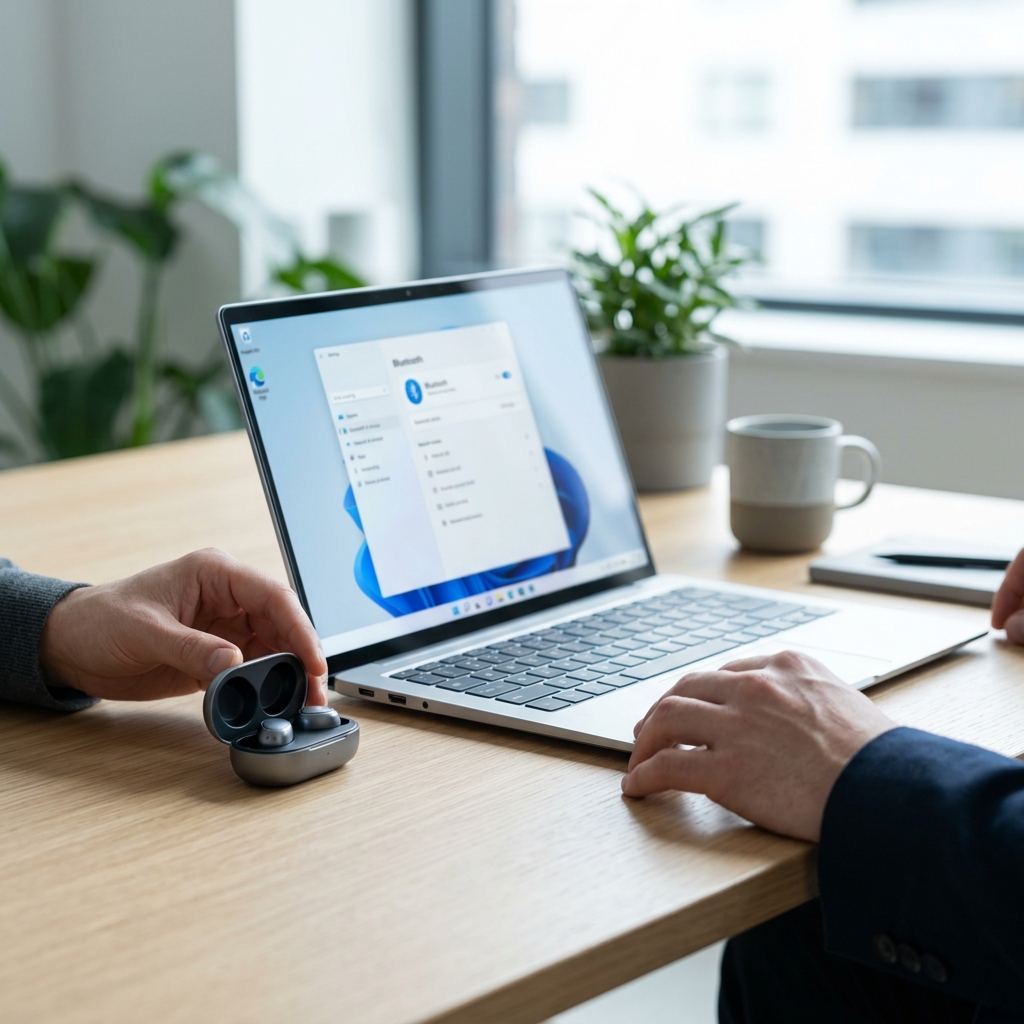
- Access Bluetooth Settings: Click the Start button, then navigate to Settings > Bluetooth & devices.
- Enable Bluetooth: Ensure the Bluetooth toggle is switched to ‘On’.
- Put Earbuds in Pairing Mode: This varies depending on the earbud model. Typically, it involves opening the charging case (for True Wireless) or holding a button on the earbuds themselves. Refer to your earbud’s manual.
- Connect to Earbuds: Your earbuds should appear in the list of available devices. Click on your earbuds’ name to connect. You may be prompted for a pairing code (usually ‘0000’).
- Manage Multiple Devices: In the Bluetooth & devices settings, you can see all paired devices. You can easily switch between them.
[Placeholder for Screenshot of Windows 11 Bluetooth Settings]
Pairing Earbuds to macOS Laptops (2026)
These instructions are for the latest version of macOS (likely macOS 16 or 17 in 2026).
- Access System Settings: Click the Apple menu, then select System Settings.
- Navigate to Bluetooth: Click on ‘Bluetooth’ in the sidebar.
- Enable Bluetooth: Ensure Bluetooth is turned ‘On’.
- Put Earbuds in Pairing Mode: As with Windows, refer to your earbud’s manual for instructions.
- Connect to Earbuds: Your earbuds will appear in the list. Click ‘Connect’ next to your earbuds’ name.
- Apple Ecosystem Benefits (AirPods): If you’re using Apple AirPods Pro 3, macOS will detect them automatically, and pairing is often instant and seamless. Device switching within the Apple ecosystem is also remarkably easy.
[Placeholder for Screenshot of macOS Bluetooth Settings]
Troubleshooting Common Pairing Issues
Here are some common problems and their solutions:
- Earbuds Not Appearing: Ensure Bluetooth is enabled on both your laptop and earbuds. Restart both devices.
- Connection Drops: Interference from other wireless devices can cause drops. Move away from potential sources of interference. Update your laptop’s Bluetooth drivers.
- Audio Distortion: Check the audio settings (see section below). Ensure the earbuds are fully charged.
- One Earbud Not Working: Reset the earbuds to factory settings (refer to the manual). Ensure both earbuds are fully charged.
Optimizing Audio Settings for Earbuds on Your Laptop
Windows: Right-click the speaker icon in the system tray, select ‘Sound settings’. Under ‘Output’, choose your earbuds. Adjust the volume and explore spatial sound options. Many earbuds now support Windows Sonic for immersive audio.
macOS: Go to System Settings > Sound. Select your earbuds under ‘Output’. Adjust the volume and explore options like Spatial Audio for a more immersive listening experience. Noise cancellation settings can also be controlled here if your earbuds support it.
Beyond Pairing: Using Earbuds for Calls and Meetings
To use your earbuds for video conferencing, ensure they are selected as both the microphone and speaker in your chosen app (Zoom, Microsoft Teams, Google Meet, etc.). In most apps, you can find these settings in the Audio or Microphone options. Modern earbuds often feature advanced noise cancellation and echo cancellation to improve call quality.
Earbud Maintenance and Battery Life Tips
Regularly clean your earbuds with a soft, dry cloth. Avoid using liquids. Battery life can be extended by:
- Storing earbuds in their charging case when not in use.
- Lowering the volume.
- Disabling features like noise cancellation when not needed.
Wireless charging is now ubiquitous in 2026, with faster charging speeds and more versatile charging pads available.
Our Top Pick
Sony WF-1000XM6 Noise Cancelling Earbuds (£279) consistently rank among the best thanks to their exceptional noise cancellation, superb sound quality, and comfortable fit. While other options exist, the XM6s offer a balanced package that suits most users.
Comparison of Popular Earbuds (2026)
| Product Name | Price (GBP) | Noise Cancellation | Battery Life (Hours) | Sound Quality |
|---|---|---|---|---|
| Sony WF-1000XM6 | £279 | Excellent | 8 (with ANC), 12 (without) | Exceptional |
| Bose QuietComfort Earbuds III | £299 | Excellent | 6 (with ANC), 10 (without) | Very Good |
| Apple AirPods Pro 3 | £249 | Very Good | 6 (with ANC), 10 (without) | Good (especially with Apple devices) |
| Sennheiser Momentum True Wireless 4 | £259 | Good | 7.5 (with ANC), 11 (without) | Excellent |
| Technics EAH-AZ80 | £229 | Good | 7 (with ANC), 10.5 (without) | Very Good |
Conclusion: Enjoy Seamless Audio with Your Earbuds
Pairing earbuds to your laptop in 2026 is a straightforward process, thanks to advancements in Bluetooth technology. By following the steps outlined in this guide, you can enjoy a superior audio experience for work, play, and everything in between. Don’t be afraid to explore the advanced settings on your laptop and earbuds to further optimise your sound and take full advantage of features like spatial audio and noise cancellation. Enjoy!
FAQ
Q: My earbuds connected once, but now they won’t reconnect. What should I do?
Try ‘forgetting’ the device in your Bluetooth settings and then re-pairing. Restarting both your laptop and earbuds can also resolve the issue.
Q: Can I use my earbuds with multiple laptops?
Yes, you can pair your earbuds with multiple laptops, but you can usually only be actively connected to one at a time. Switching between devices is usually easy through the Bluetooth settings.
Q: The audio quality is poor even after pairing. What could be the problem?
Ensure the correct audio output is selected in your laptop’s sound settings. Check the Bluetooth codec supported by your earbuds and laptop. Try updating your laptop’s Bluetooth drivers.
Q: Why is there a delay (latency) when watching videos?
Latency can be caused by Bluetooth interference or outdated drivers. Ensure a strong Bluetooth connection and update your drivers. Bluetooth 6.0 significantly reduces latency, but it can still occur in some situations.
Q: How do I update the firmware on my earbuds?
Most manufacturers provide companion apps for their earbuds. These apps often include a firmware update feature. Check your earbud manufacturer’s website for instructions.