
Table of Contents
As an Amazon Associate, we earn from qualifying purchases. This means we may receive a small commission at no extra cost to you when you buy through links on this page.
Why Update Your Wireless Earbuds Firmware?
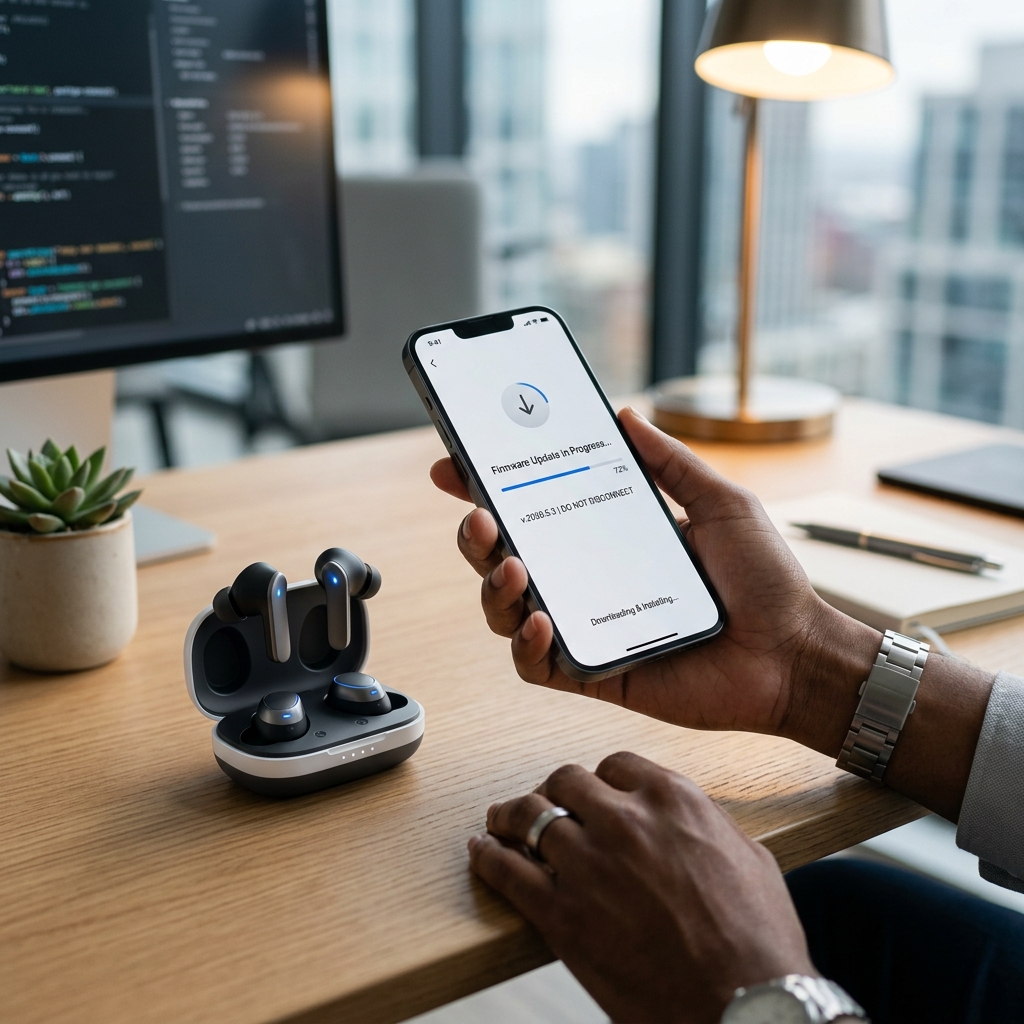
Firmware updates for your wireless earbuds are often overlooked, but they’re crucial for maintaining optimal performance. In 2026, we’re seeing increasingly sophisticated firmware impacting not just core functionality, but also exciting new features. Regular updates provide a host of benefits, including:
- Improved Sound Quality: Manufacturers constantly refine audio algorithms, and updates deliver those enhancements directly to your ears.
- Enhanced Battery Life: Optimised power management through firmware tweaks can subtly but significantly extend playtime.
- Bug Fixes: Updates squash irritating glitches, connectivity issues, and performance hiccups.
- New Features: By 2026, spatial audio enhancements and personalised sound profiles are becoming increasingly common, delivered through firmware updates. Expect more features leveraging the improved processing power of newer earbuds.
- Security Improvements: Firmware updates regularly address security vulnerabilities, protecting your data and device.
Ignoring these updates means missing out on the best possible experience your earbuds can offer. Think of it like keeping your smartphone’s operating system current.
What You’ll Need Before You Start
Before embarking on a firmware update, ensuring you have everything prepared will streamline the process. You’ll need:
- Charged Earbuds and Case: A minimum of 50% battery on both the earbuds and the charging case is highly recommended. Some updates require a full charge.
- Compatible Smartphone or Computer: Ensure your device meets the minimum system requirements specified by the earbud manufacturer.
- Stable Internet Connection: A reliable Wi-Fi connection is essential for downloading the update files.
- Manufacturer’s Companion App: You’ll almost always need the official app from the manufacturer (Apple, Sony, Bose, etc.).
Compatibility Check: Always check the manufacturer’s website or within the app to confirm your earbud model is compatible with the latest firmware version.
Updating Firmware: A Brand-by-Brand Guide (2026)
Here’s how to update the firmware for some of the most popular brands in 2026. Note: User interface changes are expected, but these instructions represent the most likely scenarios as of late 2026.
Apple AirPods (and AirPods Pro/Max)
- Ensure your iPhone or iPad is running the latest iOS or iPadOS.
- Place your AirPods (or AirPods Pro/Max) in the charging case and connect it to power.
- Place the charging case near your iPhone/iPad.
- Your device should automatically detect the AirPods and display a firmware update notification. If not, open the Settings app.
- Go to Settings > Bluetooth. Tap the “i” icon next to your AirPods.
- If an update is available, tap ‘Firmware Update’ and follow the on-screen instructions.
Sony
- Download and open the Sony Headphones Connect app.
- Pair your Sony earbuds with your smartphone via Bluetooth.
- Within the app, navigate to ‘Settings’ and then ‘Firmware Update’.
- The app will automatically check for available updates. Follow the on-screen prompts to download and install the update. Sony’s app often includes progress indicators.
Bose
- Download and open the Bose Music app.
- Ensure your Bose earbuds are connected to your smartphone via Bluetooth.
- Select your earbuds from the ‘My Products’ list.
- The app will check for updates. If available, follow the on-screen instructions to initiate the update. Bose has improved its update process, making it more reliable in 2026.
Jabra
- Download and open the Jabra Sound+ app.
- Connect your Jabra earbuds to your smartphone via Bluetooth.
- In the app, go to ‘Settings’ and then ‘Firmware Update’.
- The app will search for available updates. Follow the prompts to download and install.
Sennheiser
- Download and open the Sennheiser Smart Control app.
- Pair your Sennheiser earbuds with your smartphone via Bluetooth.
- Select your earbuds within the app.
- Navigate to ‘Product Update’. The app will alert you to any available updates.
- Follow the on-screen instructions to download and install. Sennheiser’s update interface is now more user-friendly.
Google Pixel Buds Pro (2026)
- Ensure your Android phone is updated to the latest version of Android.
- Open the Pixel Buds app.
- The app usually displays a banner notifying you of a firmware update.
- If not, navigate to ‘Settings’ and then ‘Firmware Update’.
- Follow the on-screen prompts to download and install the update.
Samsung Galaxy Buds
- Download and open the Galaxy Wearable app.
- Ensure your Galaxy Buds are connected to your smartphone via Bluetooth.
- Select your earbuds from the device list.
- The app will check for updates. If available, tap ‘Earbud Software Update’ and follow the instructions.
Troubleshooting Firmware Update Issues
Update problems can occur. Here’s how to address common issues:
- Update Failing to Start: Restart both your earbuds and smartphone. Ensure you have a stable internet connection.
- Update Getting Stuck: Do not interrupt the update process. If it’s stuck for over 30 minutes, try restarting the process. If it *still* fails, contact customer support.
- Earbuds Disconnecting During the Update: Ensure the earbuds remain in range of your smartphone throughout the process. A weak Bluetooth signal can cause disconnection. Keep the charging case near the phone.
- App Errors: Clear the app cache and data (in your phone’s settings). If that doesn’t work, uninstall and reinstall the app.
Contact Support: If you’ve tried these steps and the update still fails, contact the manufacturer’s customer support for assistance.
Firmware Update Best Practices & Future Trends (2026)
For a smooth update experience:
- Don’t Interrupt: Never interrupt the update process.
- Stable Connection: Use a stable Wi-Fi connection.
- Keep it Charged: Ensure adequate battery life.
- Read Instructions: Always carefully read the on-screen instructions.
Future Trends: By 2026, several trends are emerging:
- Over-the-Air (OTA) Updates: OTA updates are becoming increasingly standard, allowing updates to be downloaded and installed directly to the earbuds without app intervention.
- AI-Powered Optimization: Manufacturers are exploring AI to personalize firmware updates based on user listening habits.
- Seamless Updates: Updates are becoming more seamless, often happening in the background without significant disruption.
- USB-C Universality: With USB-C now almost universally adopted, charging and data transfer are becoming more standardised, which will simplify the update process for some models.
Frequently Asked Questions (FAQs)
Q: How long does a firmware update usually take?
Typically, a firmware update takes between 5 to 30 minutes, depending on the size of the update and the earbud model.
Q: Can I use my earbuds while they are updating?
No. Do not use your earbuds during a firmware update. Interrupting the process can brick the device.
Q: What happens if the update fails midway?
Try restarting the update process. If it continues to fail, contact the manufacturer’s customer support.
Q: How often should I check for firmware updates?
Check for updates at least once a month, or when prompted by the companion app.
Q: Why does my app say there are no updates available, but I think there should be?
Updates are rolled out in phases. It’s possible the update hasn’t reached your region or earbud model yet. Check back later.